
Jump to a step
Before starting a run
PokéBonk runs in the game window on the Play page. It needs a current browser with JavaScript, WebGL and an internet connection. Loading the page around the game does not mean every game resource is ready.
Wait for an interactive game screen, then click inside the window before using the keyboard. If the window is blank, shows a connection error or will not accept input, use the loading and controls checklist before changing save or browser settings.
From entry to a first run
- Choose how to enter.
The entry screen offers Guest access and account options. Read the Guest notice before continuing: in the current interface, it describes a server save tied to the device. Keep the same browser profile while learning the game. This site does not create or manage your game account.
- Choose the first member of your League.
The v0.8.25 starter screen offers Bulbasaur, Charmander and Squirtle. It displays left/right selection and Enter to confirm. Compare the role, passive and starting attack in our starter selection table before committing. The other two partners are not immediately added to your League.
- Open Play, then select your League member.
In the route checked for this guide, we chose Squirtle, opened Play and used I choose you! on the League screen to continue.
- Choose a region and start.
On Choose region, the checked route used Viridian Forest with Normal difficulty, then Start!. This entered the 3D battle. Read the map and objective shown for your own selection; the lobby also contains other modes and time-limited events.
- Move while your attacks work.
Squirtle attacked automatically in the checked opening. Give yourself space, collect dropped experience when safe and watch for the level-up choices. Pause before inspecting long descriptions.
Keyboard and mouse controls
Click inside the game first. The keyboard belongs to the focused game window, not to the guide around it. In the checked run, 1 selected the first upgrade, Esc opened pause and resumed the game, and P resumed from pause.
| Action | Listed input |
|---|---|
| Move | W A S D |
| Camera | Move the mouse |
| Jump | Space; hold to glide when flying |
| Slide | Shift |
| Ultimate | R |
| Interact | E |
| Lock | Right mouse button |
| Aim | Q |
| Zoom | Mouse wheel |
| Pause / resume | P; Esc also opens or resumes pause |
Use P to manage pause in fullscreen, where Esc may also leave the browser's fullscreen view. The fullscreen control is beneath the game window. If the browser declines fullscreen, continue in the window.
On a phone, a landscape view gives the interface more room. These desktop key mappings do not establish a complete touch control scheme; check the controls shown on your device.
What to read at a level-up
Collecting dropped experience led to Level 2 in the checked Squirtle run. The game paused on three choices: a Water Gun upgrade, Super Potion and Elixir.
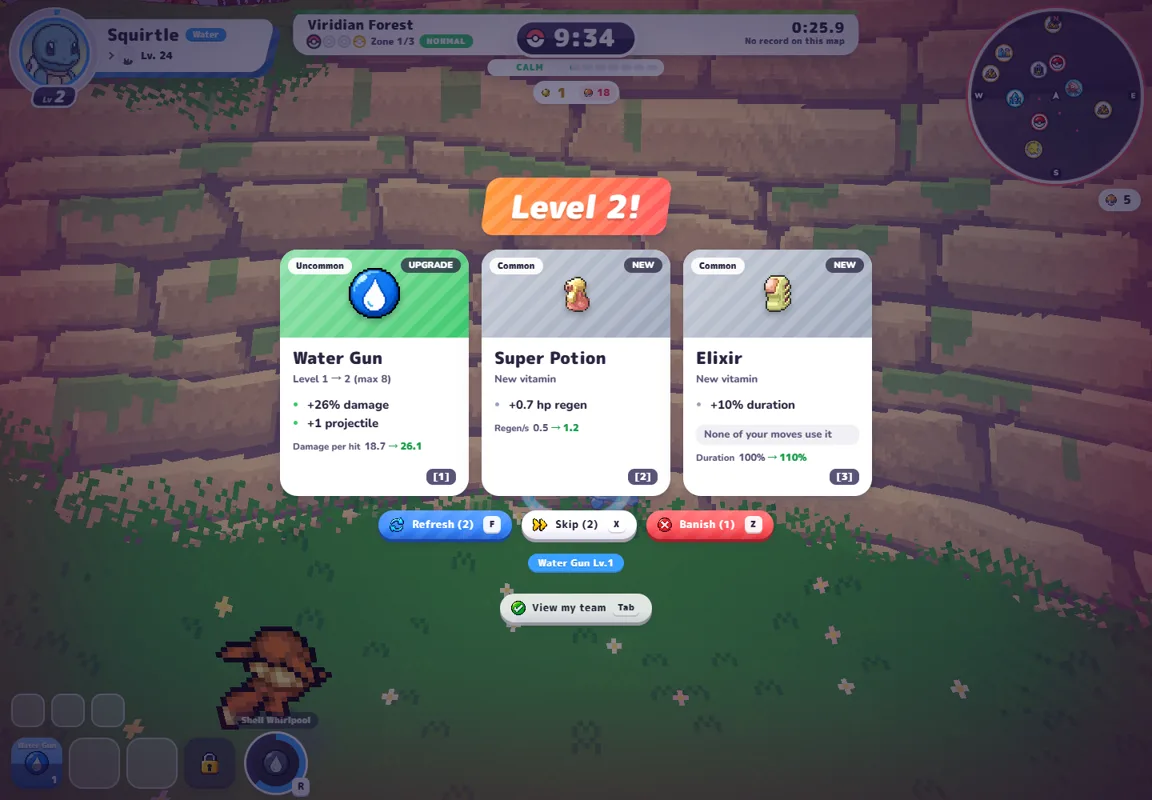
Read what each offer does for your current kit. Water Gun offered improvements to the existing attack; Super Potion offered health regeneration; Elixir offered duration, but its card explicitly said None of your moves use it. That last line matters more to an immediate decision than the card's rarity alone.
The pictured panel shows 1, 2 and 3 for the three cards. We selected 1, then opened pause and confirmed Water Gun Lv2 in the move display. Check that display after your choice to confirm it registered. Offers can vary, so this screenshot is an example rather than an upgrade order.
What to do next
If choosing a partner is the sticking point, compare the starter roles and first-choice questions. If the game is not behaving as expected, go to the symptom-by-symptom help page. When you are ready, return to the game window.